Closed Testing
How to Invite Testers to Google Play Closed Testing (Opt-In Link Guide)
Find the Play Console closed testing opt-in link, invite 12+ testers correctly, fix join failures, and keep opt-ins continuous for the 14-day window.
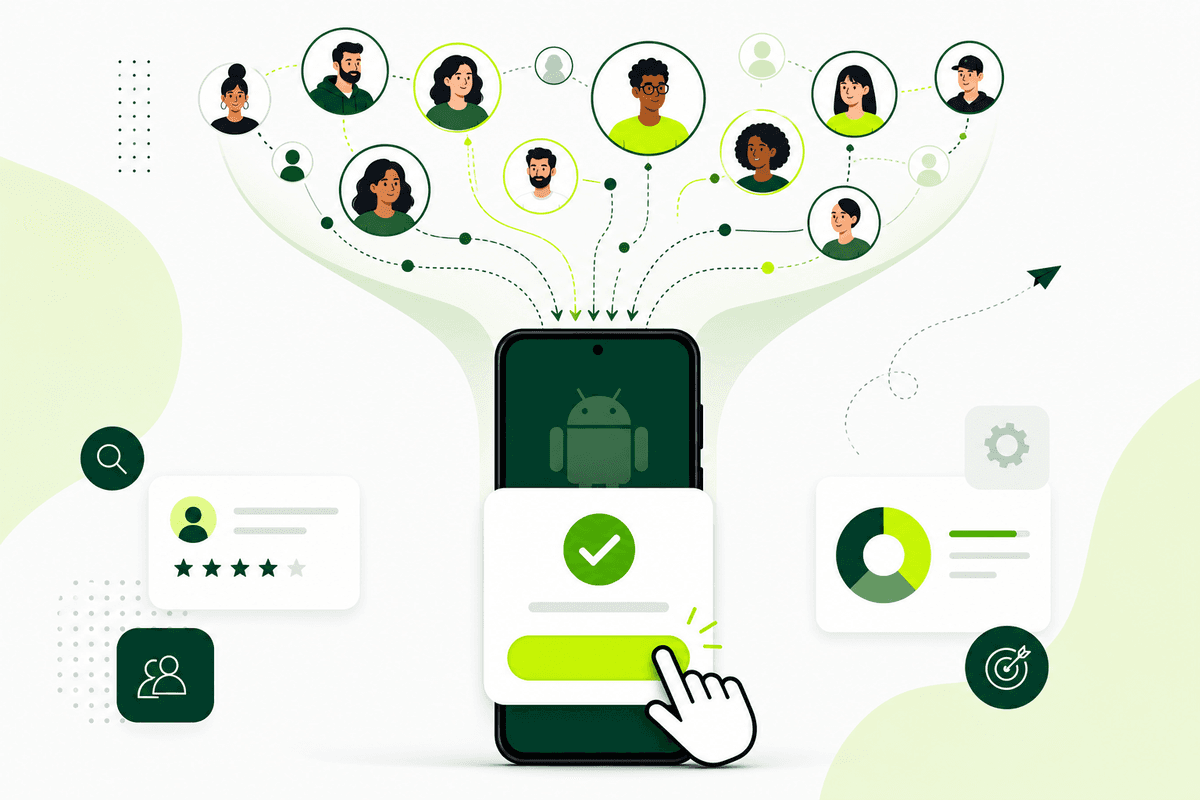
Inviting testers to Google Play closed testing is the step most indie developers underestimate. You can upload a clean AAB, write release notes, and still fail the production-access gate if people never complete the official opt-in — or if they install the wrong way. For newly created personal developer accounts, you need at least twelve testers opted in on the closed track for fourteen continuous days before you can apply for production access.
This guide shows exactly how to create the invite, find the opt-in link in Play Console, send instructions that non-technical testers can follow, verify each join, and recover when someone cannot install. Use it with the 12 testers requirement and 14-day window guides when you are ready to start the clock.
Get 12 testers for 14 daysIf recruiting and chasing opt-ins is the blocker, compare managed closed testing with real Android testers.Email list vs opt-in link: which invite method to use
Play Console gives you two main ways to add closed testers. An email list (or Google Group) lets you control exactly who can join. An opt-in link lets you share one URL with communities, Discord servers, beta waitlists, or a managed testing partner. Many teams use both: a core email list for trusted people, plus a link for overflow recruits.
For the 12-testers-for-14-days rule, the invite method does not change what counts. What counts is that each person completes opt-in with a real Google account and installs from the Play Store test path. A name on your spreadsheet with no Play Console join is still zero testers.
If you are recruiting strangers or working with a service, the opt-in link is usually faster. If you only have twelve friends and family, an email list plus individual follow-ups is often enough — as long as you verify joins daily.
- Email list: best for known Google accounts and tight control.
- Google Group: useful when you already manage a tester community.
- Opt-in link: best for scaling recruitment and managed tester workflows.
- Always verify joins in Play Console — never trust “I installed it” alone.
Where to find the closed testing opt-in link in Play Console
Open Google Play Console, select your app, then go to Testing → Closed testing. Open the track you use for pre-launch (often the default closed track). Under the Testers tab, create or select an email list, or enable the option to copy a join / opt-in link for that track.
The link typically looks like a Play Store testing URL for your package name. Testers must open it while signed into the Google account you expect them to use for the entire fourteen-day window. Switching accounts mid-flow is one of the most common reasons someone appears “invited” but never counts as opted in.
Do not share a production store listing URL, an internal testing link, or a direct APK. Those paths do not create closed-track opt-ins for production access. If you are unsure which track you are on, read internal testing vs closed testing before you send anything.
- Play Console → your app → Testing → Closed testing.
- Open the correct closed track → Testers.
- Create the email list and/or copy the opt-in / join link.
- Confirm the release is approved and available to testers.
- Send the link with account and install instructions (template below).
Copy-paste invite message that actually gets installs
Most invite failures are communication failures. Friends ignore long emails. Community recruits bounce when the first step is unclear. Keep the message short, mobile-friendly, and sequential.
Include five things every time: what the app does in one sentence, how long you need them (fourteen days opted in), the exact Google account rule, the opt-in link, and how to confirm they joined. Add two or three test scenarios only after install succeeds.
Send reminders on day one and day three for anyone who has not appeared in Play Console. Offer a five-minute screen share for stuck installs. Time spent here is cheaper than restarting a broken fourteen-day window.
- Subject: Help test [App] on Google Play (takes ~10 minutes to join).
- Body line 1: Thanks — I need you opted in for 14 days for Play Console.
- Body line 2: Use THIS Google account the whole time: [email].
- Body line 3: Open this join link on your Android phone: [opt-in URL].
- Body line 4: Tap Become a tester → install from Play Store → reply “joined.”
- Body line 5: Then try: open app → sign up → complete [core action].
How to verify each tester actually joined
After you send invites, open Play Console and check the closed track tester count and list. Treat “email sent” and “opted in” as different states. Your production-access clock should start only when the release is available and at least twelve people show as opted in — not when you upload the AAB.
Keep a simple sheet: name, Google email, invite sent date, opt-in confirmed (yes/no), device, notes. Update it daily for the first week. If someone says they installed but is missing from Console, ask which Google account they used and whether they opened the join link or a sideloaded file.
Use the free closed testing checklist before you declare day zero. Country targeting, incomplete rollout, and release still in review are frequent blockers that look like “testers are ignoring me.”
Fix common invite and install failures
If testers cannot find the app: confirm they opened the opt-in link while logged into the invited account, accepted Become a tester, and then installed from the Play Store test listing — not by searching the public store before production access exists.
If the join page errors: check that their country is included in the closed test, the track is active, and the release finished review. New accounts sometimes wait one to three days before testers can install. Do not start counting fourteen days during that wait.
If opt-ins stall below twelve: recruit a buffer of fourteen to sixteen people, replace no-shows within forty-eight hours, and avoid disposable accounts. Shortcuts with fake testers create weak evidence and launch risk — see fake testers risks.
- Wrong Google account on phone vs invite email.
- Sideloaded APK instead of Play Store test install.
- Closed release still in review or not fully rolled out.
- Country / device not eligible for the closed track.
- Tester used internal testing link by mistake.
When to recruit yourself vs use a managed tester service
Recruit yourself when you already have fifteen reliable Android users who will follow instructions and stay opted in. Managed closed testing makes sense when friends drop off, you lack device diversity, or you cannot afford another failed fourteen-day cycle before launch.
Judge any helper — friend network or service — by the same standard: real opted-in testers on the closed track, visible progress, and enough activity that you can answer Google’s production-access questions with specifics. Buying a number without opt-in proof is not a strategy.
TestMyApps coordinates real Android testers for the closed testing requirement, monitors opt-ins, and helps you keep the continuous window intact. Start from get 12 testers for 14 days if recruitment is the bottleneck after you set up the track correctly.
Compare managed closed testingSee how managed opt-ins and 14-day coverage work for personal Play Console accounts.FAQ
Questions about this topic
Where is the Google Play closed testing opt-in link?
In Play Console, open your app → Testing → Closed testing → your track → Testers. Create or select a tester list, then copy the join / opt-in link for that closed track. Share that URL — not your public store listing or an APK.
Do testers need to be on my email list to count?
They need to be eligible for your closed track and complete opt-in. That can be via email list, Google Group, or an opt-in link, depending on how you configured the track. What matters for production access is continuous opted-in status on the closed track, not which invite channel you used.
Can I share one opt-in link with many people?
Yes. An opt-in link is designed for sharing. Still verify each join in Play Console, and make sure every person uses a real Google account they will keep for the full fourteen days.
Why did my tester install the app but not count toward 12?
Common causes: they sideloaded an APK, used a different Google account than the one that joined, joined internal testing instead of closed testing, or the closed release was not yet available. Confirm they opened the closed-track join link and appear as opted in inside Play Console.
How many people should I invite if I need 12 testers?
Invite fourteen to sixteen. Expect dropouts from wrong accounts, install failures, and lost interest. A buffer protects the continuous fourteen-day window. See the [12 testers requirement guide](/blog/google-play-12-testers-requirement-2026) for what counts.
Is inviting testers the same as starting the 14-day clock?
No. Sending invites does not start the window. The continuous period begins when your closed release is available and at least twelve testers are opted in. Use the [14-day testing window guide](/blog/google-play-14-day-testing-window) before you mark day zero.
Sources
Official references used
- App testing requirements for new personal developer accounts (Google Play Console Help)
- Set up an open, closed, or internal test (Google Play Console Help)
Continue
Choose the next step
Related
Next pages to read
Apply the guide to your closed-testing run.
Use the free tools to check your setup, or review managed tester support when recruitment and coordination are the blocker.
Need help getting your app through store testing?
Talk to the TestMyApps team about onboarding, pricing, or store testing support