Insight
Common reasons apps get rejected
Insight into why apps fail Google Play and App Store reviews, and how to prevent predictable issues.
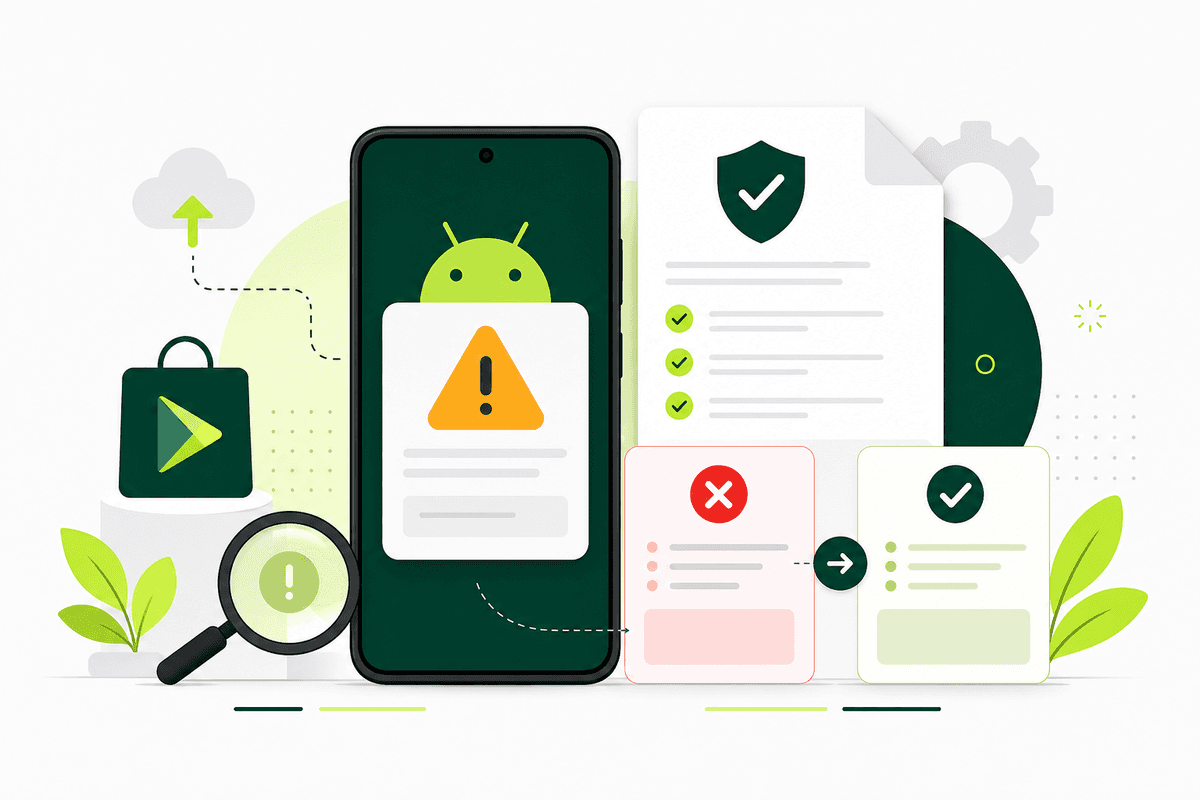
Apps get rejected most often for predictable reasons: crashes and broken core flows, authentication failures during review, privacy policy and data disclosure mismatches, misleading store metadata, performance problems on real devices, permission misuse, and broader policy violations — not mysterious one-off edge cases. Auditing these areas before submission reduces back-and-forth with reviewers and shortens time to launch.
App rejection is frustrating, especially when the reason feels vague. In practice, most rejections map to a small set of recurring themes. This article breaks down the most common failure modes so you can audit your app before submission. Pair it with the mobile app launch testing checklist and how to test your Android app before launch for a structured pre-flight pass.
Poor app quality
Crashes, broken screens, and incomplete flows are the fastest path to rejection. Reviewers exercise core journeys on real devices — often mid-range phones, not your development flagship. Even small UI defects can signal low polish or instability when they block task completion.
Treat stability as a release gate: fix crashes first, then usability, then edge cases. Run smoke tests on every release candidate before upload. A single crash on the login screen ends review faster than any policy debate.
If you are preparing for Google Play closed testing, fix obvious quality issues before inviting external testers. Wasting the fourteen-day window on avoidable crashes is one of the most expensive pre-launch mistakes. See the complete closed testing playbook for timing guidance.
Authentication problems
If your app requires login, the flow must work end-to-end in the environment reviewers use. Common issues include OTP failures, broken password reset, social login misconfiguration, or missing demo credentials when reviewers cannot create accounts.
Always provide working test accounts and clear instructions in App Store Connect or Play Console review notes. If you use third-party identity providers, verify token refresh, session expiry, and error handling on slow networks. Reviewers will not debug your auth stack — they will reject and move on.
Test auth on a clean install with no cached tokens. Delete the app, reinstall from the store or test track, and walk through signup and login as a new user. That is exactly what reviewers do.
Missing or incorrect policies
You must supply a privacy policy when you collect data, and your Play data safety and App Store privacy answers must match reality. Mismatches between declared data collection and actual behavior are a frequent rejection trigger — especially when analytics, crash reporting, or authentication SDKs collect more than you disclosed.
Audit permissions, analytics SDKs, and backend logging so your disclosures stay accurate as your app evolves. Update the privacy policy when you add features that touch location, contacts, photos, or health data.
Link the privacy policy from inside the app and from the store listing. Broken links or placeholder URLs fail review even when the app itself works. Cross-check disclosures against the launch testing checklist before submission.
Misleading metadata
Your listing must represent what the app does today. Avoid screenshots of features you have not shipped, exaggerated claims, or promotional language that implies functionality you do not provide. Reviewers compare the store page to the binary.
Keep both aligned on every release. If you remove a feature, update screenshots and description copy before submitting the build. Seasonal marketing language that overpromises creates trust problems during review.
App preview videos and screenshot captions receive the same scrutiny as description text. Treat store metadata as part of your QA surface — not a marketing afterthought.
Performance issues
Slow launches, frozen UI, and janky animations create a poor first impression. Performance problems are especially visible on lower-end devices that reviewers commonly use. An app that feels fine on your development phone may stall on a budget device with limited RAM.
Profile startup time, memory usage, and main-thread work before you submit. Cold start under three seconds on a mid-range device is a reasonable target for most consumer apps. ANRs and frozen frames during onboarding are common rejection triggers on Google Play.
Real-device testing catches performance issues emulators miss. See real users vs emulators for app testing for why device diversity matters before review.
Permission misuse
Request only what you need, and explain why inside the app. Asking for location, contacts, or photos without a clear feature tied to that access raises red flags. Background location without obvious user benefit is a frequent policy violation.
Default to least privilege and add in-app rationale strings that match your policy text. Request permissions in context — when the user taps a feature that needs them — not all at once on first launch before value is clear.
Review Google Play and Apple permission guidelines for your category before submission. Health, finance, and children's apps face stricter scrutiny.
Policy violations and restricted content
Copyright issues, restricted content categories, deceptive behavior, or spam patterns can lead to immediate rejection. If your app includes user-generated content, you need moderation and reporting paths where required.
Deceptive patterns — fake functionality, hidden charges, or misleading subscription flows — trigger fast rejection and can affect account standing. Subscription apps must show pricing clearly before purchase and honor platform billing requirements.
Health, finance, gambling, and children's categories carry additional rules. An app that is fine in a productivity category may fail review when it touches regulated data or age-restricted content. Read category-specific guidelines before you design flows that assume general-purpose rules apply everywhere.
When you are unsure, review the latest platform policies for your category before you invest in a full QA cycle. Policy research is cheaper than a rejection loop.
What to do after rejection
Read the rejection reason carefully and reproduce it on a clean install. Fix the root cause, not the symptom. Re-test on multiple devices, then resubmit with clear notes if the console allows. Explain what you changed and where reviewers can verify the fix.
Rejections are common; disciplined follow-up turns them into a short delay instead of a multi-week loop. Document each rejection and fix so your team does not repeat the same mistake on the next build.
If rejection relates to testing or production access on Google Play, review what is Google Play closed testing and the testing requirements guide. A managed closed testing service can help if tester participation was part of the problem. See how it works and pricing for support options.
FAQ
Questions about this topic
What are the most common reasons apps get rejected?
The most common reasons are crashes and broken core flows, authentication failures, privacy policy and data disclosure mismatches, misleading store metadata, performance issues on real devices, permission misuse, and policy violations. Most rejections fall into these predictable categories.
How do I pass Google Play review?
Ship a stable build with working login and onboarding, accurate store metadata and privacy disclosures, permissions tied to visible features, and working test accounts for reviewers. Run pre-launch QA on real devices before submission.
Why do apps fail review for privacy reasons?
Reviewers compare your privacy policy, data safety answers, and in-app permission requests against actual SDK and backend behavior. Mismatches — undeclared analytics, missing policy links, or excessive permissions — trigger rejection.
Do misleading screenshots cause rejection?
Yes. Store listings must represent the current app. Screenshots or descriptions showing unshipped features, exaggerated claims, or functionality the binary does not provide are common rejection triggers.
What should I do after an app store rejection?
Read the reason carefully, reproduce on a clean install, fix the root cause, retest on multiple devices, and resubmit with clear notes explaining the fix. Document the issue so your team avoids repeating it.
Can poor closed testing cause production access denial?
Yes. For affected personal accounts, weak tester participation or quality issues discovered during closed testing can affect production access applications. Treat closed testing as a quality gate, not only a compliance checkbox.
Sources
Official references used
- App testing requirements for new personal developer accounts (Google Play Console Help)
- Set up an open, closed, or internal test (Google Play Console Help)
Continue
Choose the next step
Related
Next pages to read
Apply the guide to your closed-testing run.
Use the free tools to check your setup, or review managed tester support when recruitment and coordination are the blocker.
Need help getting your app through store testing?
Talk to the TestMyApps team about onboarding, pricing, or store testing support