Troubleshooting
Production Access Denied on Google Play: Fixes for Closed Testing Rejection
If Google Play production access was denied, use this troubleshooting guide to review testers, policy readiness, app quality, and resubmission notes.
On this page · 9 sections
- 01Start with the denial reason and Play Console messages
- 02Verify closed testing basics first
- 03Review app quality and tester activity
- 04Check policy readiness and store listing accuracy
- 05Build a stronger resubmission package
- 06Example fix path after a weak closed test
- 07When to restart closed testing vs fix and resubmit
- 08Frequently asked questions
- 09Official sources
At a glance
In plain English
- A denial or “more testing” request means Google was not convinced yet — read the reason and fix that, not everything at once.
- Common gaps: weak closed-test evidence, broken reviewer login, policy/listing mismatches, or an unhealthy tester count.
- Repair, retest, document changes, then reapply — do not resubmit the same answers.
If Google denies production access or asks for more testing, treat it as feedback, not a permanent block.
Start with the exact reason in Play Console or email. Fix that issue, keep the closed test healthy, and reapply with clearer evidence.
This guide covers the most common gaps teams hit after a 12×14 run.
Start with the denial reason and Play Console messages
Open Play Console and read every message related to your production-access request. Google may cite specific issues: insufficient tester activity, policy gaps, broken core functionality, misleading store listing claims, or incomplete data safety disclosures. The stated reason is your starting checklist — do not resubmit without addressing it.
If the message is vague, assume you need to strengthen all four pillars: tester count and opt-in continuity, app quality and testable core flows, policy and store listing accuracy, and specific production-access answers. Screenshot the denial message and any follow-up prompts for your internal records.
Denial is not permanent. You can fix issues, continue or restart closed testing if needed, and apply again. Many apps succeed on the second or third attempt after addressing root causes rather than clicking resubmit with no changes.
Verify closed testing basics first
Before diving into app code, confirm the closed testing fundamentals. Did you run the test on the closed track — not internal testing? Did at least twelve testers remain opted in for fourteen continuous days? Was the release available and installable throughout the window? Did testers use the official Play Store opt-in path?
Open Play Console and check your closed testing track history. Compare your records against the 12 testers requirement and 14-day window guides. If your test did not meet the criteria, you need a new qualifying run before resubmitting — not just better answers.
Use the closed testing checklist tool to audit your setup. Common gaps: counting from upload date instead of opt-in completion, dropping below twelve testers mid-window, and testers who never completed opt-in appearing on your spreadsheet but not in Play Console.
- Closed track used, not internal or sideload-only distribution.
- Twelve or more testers continuously opted in for fourteen days.
- Release approved and available throughout the qualifying window.
- Testers installed through Play Store opt-in, not APK sideload.
- Daily opt-in records or screenshots as proof.
Review app quality and tester activity
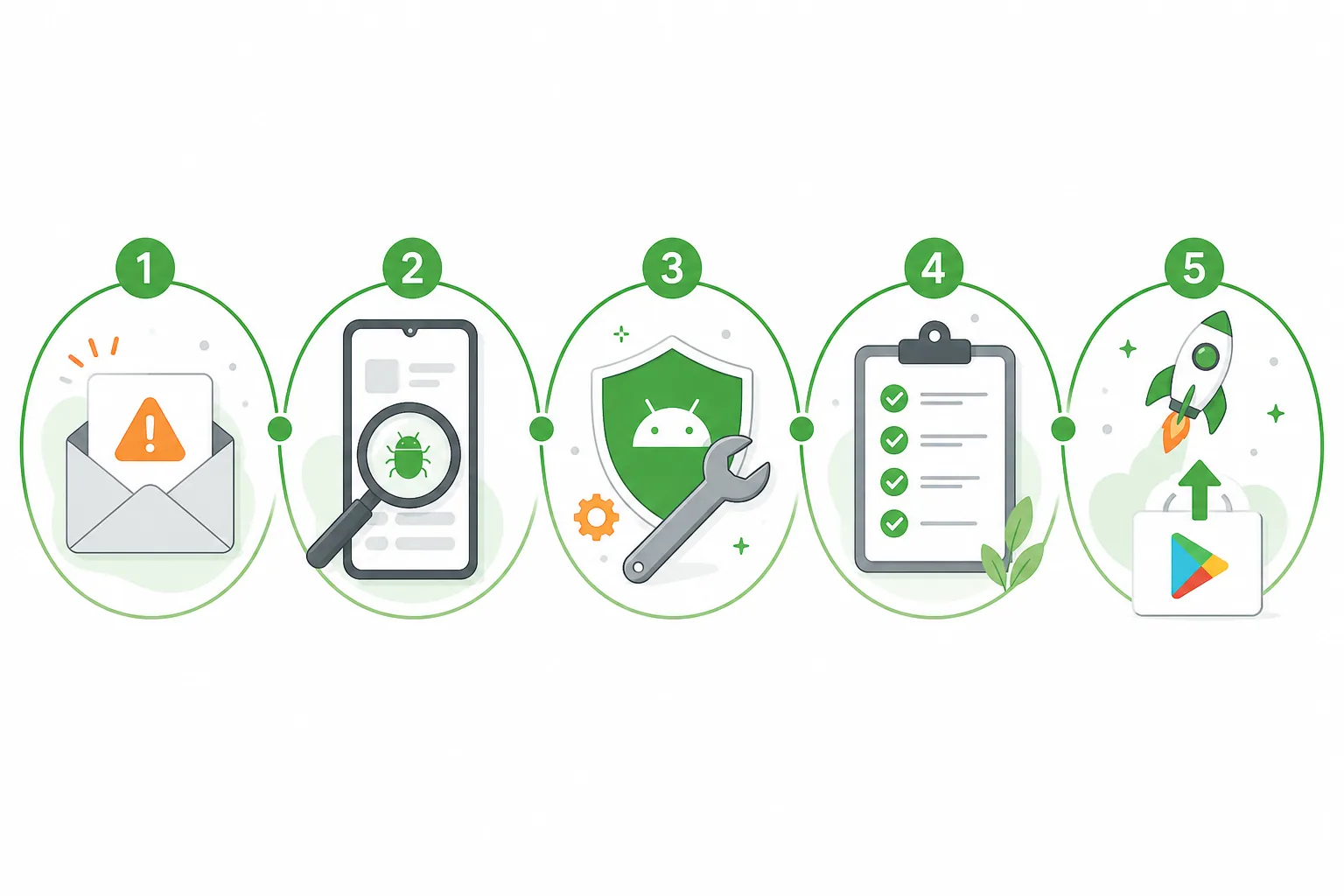
Google frames closed testing as a way to find and fix issues before production. A quiet fourteen-day run where nobody used the app, reported nothing, and nothing changed looks like a checkbox exercise — not credible testing. Reviewer skepticism is understandable.
Before resubmitting, ask testers to complete structured scenarios: onboarding, login, core feature, settings, and any policy-sensitive flows like account deletion or payments. Collect written feedback with device model and Android version. Fix crashes and blockers testers find, ship an updated build, and ask at least three testers to retest.
Document the before-and-after story: what was broken, what testers reported, what you fixed, and which build contains the fix. This narrative belongs in your production-access answers and in your internal closeout summary.
Check policy readiness and store listing accuracy
Closed testing does not replace Google Play policy review. Denial often reflects privacy policy gaps, inaccurate data safety answers, missing account deletion flows, sensitive permissions without proper disclosure, or store listing screenshots and descriptions that do not match the actual app.
Walk through policy-sensitive areas systematically. Privacy policy link works and matches your data collection. Data safety form answers align with SDKs and analytics you actually use. Account deletion is accessible if your app creates accounts. Permissions show prominent disclosure before the system dialog. Store listing claims are accurate — no features shown in screenshots that do not exist in the build.
Ask testers to explicitly try policy flows during the next test window: open privacy policy from settings, request account deletion, trigger permission prompts, and complete payment or subscription flows if applicable. Policy-ready testing produces fewer surprises on resubmission.
Build a stronger resubmission package
Resubmitting without changes rarely works. Create a short resubmission document — even if Google does not ask for it, writing it clarifies your answers. Include: app version tested, tester count and opt-in dates, key scenarios exercised, bugs found and fixed, policy items verified, and what is different from the previous submission.
Rewrite vague production-access answers with specific examples. Instead of 'we tested the app with real users,' write 'fourteen testers opted in from March 1–15; twelve completed onboarding scenarios; three reported a login crash on Samsung devices; fixed in version 2.1.1; four testers confirmed the fix.' Specificity builds credibility.
Keep your closed test active during resubmission. Maintaining opt-ins and continuing to collect feedback shows ongoing commitment. If you need help maintaining tester count, consider the Google Play closed testing service for coordinated real testers.
- Read and address every point in the denial message.
- Verify or rerun qualifying closed testing if basics were not met.
- Fix app blockers and retest with documented feedback.
- Audit policy, data safety, and store listing accuracy.
- Rewrite production-access answers with specific test evidence.
- Apply again only when the app and test story are genuinely stronger.
Example fix path after a weak closed test
Imagine a social app denied after a fourteen-day run where only four testers actually installed and none posted content. The fix path: recruit fourteen new testers with a buffer, write scenario-based instructions ('create account, complete profile, post one item, comment on another user's post'), fix any onboarding crashes testers hit, ship an updated build mid-window, and document every change.
Run the new test for a full fourteen continuous days with twelve or more opted in. Collect feedback in a shared form. Before resubmitting, confirm store listing screenshots match the current UI, data safety covers user-generated content, and a reporting or moderation flow exists if users can post content.
This approach shows Google that testing improved the app — not just that another fourteen days elapsed. Pair the fix path with the testing timeline estimator to set realistic expectations for your resubmission date.
When to restart closed testing vs fix and resubmit
If your previous test never met the twelve-testers-for-fourteen-days criteria, you must run a new qualifying closed test — fixing answers alone will not work. If the test met the criteria but activity was weak or the app had blockers, you may be able to continue the existing test while fixing issues, or run a fresh window with stronger participation.
When in doubt, run a clean new test with a documented plan. The cost of an extra fourteen days is lower than repeated denials and mounting frustration. Read what is closed testing for setup basics and internal vs closed testing to confirm you are on the correct track.
After resubmission, Google review usually takes seven days or less but can occasionally take longer. Keep testers active, monitor Play Console for follow-up questions, and avoid making major breaking changes while review is in progress unless necessary.
FAQ
Questions about this topic
How long does Google take to review production access?
Google says production-access review usually takes seven days or less, but it can occasionally take longer. Keep your closed test active and testers opted in during review in case Google requests continued testing or additional information.
Can I apply again after production access is denied?
Yes. Fix the issues cited in the denial, strengthen your closed testing evidence and production-access answers, verify policy readiness, and apply again when the app and test story are genuinely stronger — not immediately with no changes.
Does production access denial mean my app violated policy?
Not always. Denial can reflect insufficient tester activity, weak testing evidence, incomplete setup, app quality issues, or unclear answers — not only formal policy violations. Read the specific denial message to understand which factors applied.
Do I need to rerun closed testing after denial?
If your previous test did not meet the twelve-testers-for-fourteen-days requirement, you need a new qualifying run. If the test met the criteria but was weak, you may continue with stronger participation and fixes, or run a fresh window for a cleaner evidence story.
What should I include in production access answers after denial?
Include specific test evidence: tester count, opt-in dates, scenarios completed, bugs found, fixes shipped with version numbers, and retest confirmation. Replace vague claims with concrete examples tied to your app's core flows.
Can fake testers cause production access denial?
Fake or low-effort testers create weak testing evidence that reviewers can question. Use real opted-in testers who install through the Play Store path and provide meaningful feedback. See our guide on [fake testers risks](/blog/fake-testers-google-play-closed-testing) for safer alternatives.
Sources
Official references used
- App testing requirements for new personal developer accounts (Google Play Console Help)
- Set up an open, closed, or internal test (Google Play Console Help)
Continue
Choose the next step
Related
Next pages to read
Need 12 testers for 14 days?
Start a managed Google Play closed-testing run with verified testers, opt-in monitoring, and a closeout report.